
In This Article
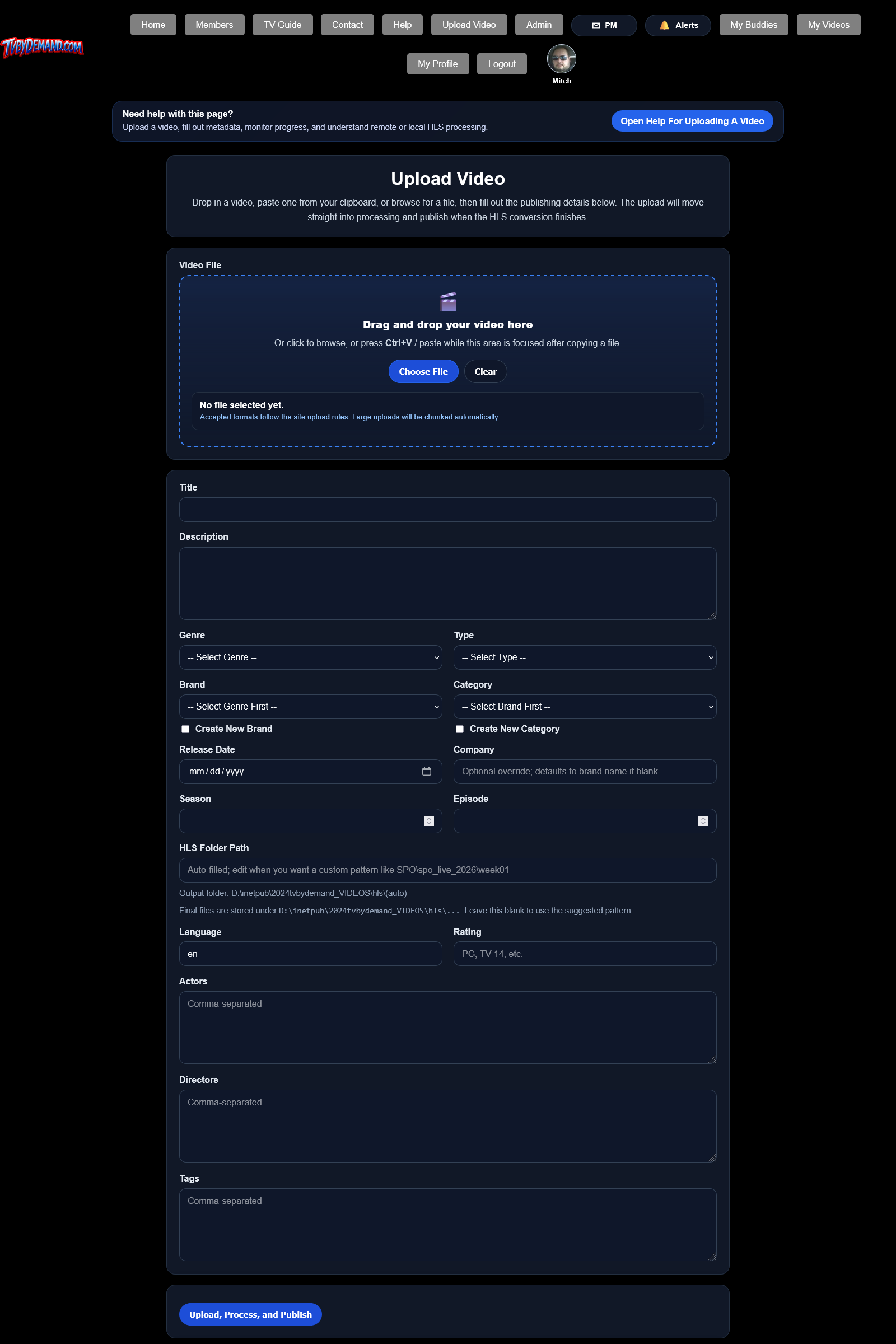
How to upload
- Open Upload Video from the top menu if your account has uploader access.
- Drag and drop a file, paste a file when the browser supports it, or browse from disk.
- Fill in the metadata fields before starting the upload.
- Click Upload, Process, And Publish and watch the upload and HLS progress areas.
What happens after upload
- The server creates a processing queue entry for the video.
- Processing may happen locally or on a remote worker such as Pandora, depending on availability.
- If a remote run fails or stalls, the system can fall back to local processing automatically.
Keywords
Related Help
My Videos
Manage videos you uploaded, including metadata edits, delete and restore actions, and processing recovery.
Video Posters And Thumbnails
Upload or replace poster and thumbnail artwork for a video and understand where those files are stored.
Troubleshooting Uploads
What to check when uploads do not start, processing stalls, or a video does not show publicly after encoding.
Still Need Help?
If this article did not answer what you needed, the fastest next step is to contact staff or PM an admin from your account.